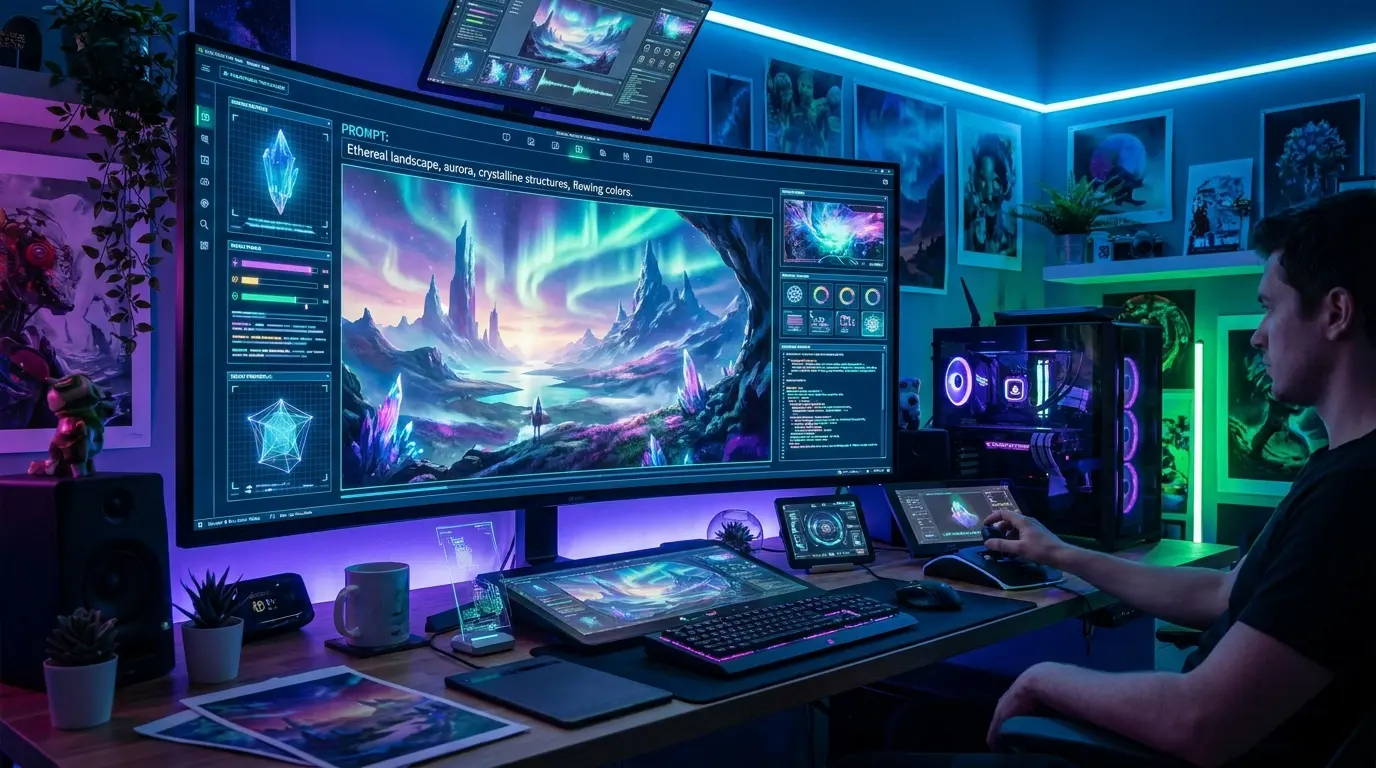
Have you ever wished you could turn simple words into stunning digital art without learning design skills or using complex software?
That’s exactly what OpenDream AI Art makes possible. In this guide, you will learn how to use it from scratch, how to improve your results, and how to avoid common mistakes that stop beginners from getting good images. Everything is explained in a simple, practical way so you can start creating immediately.
What Is OpenDream AI Art?
OpenDream AI Art is a web-based AI tool that converts text into images. You simply describe what you want, and the system generates artwork in seconds.
It is built on advanced AI models similar to Stable Diffusion, which means it understands style, objects, lighting, and composition from your text.
You can create realistic portraits, anime characters, fantasy scenes, and digital illustrations without any design experience. Everything runs directly in your browser, so no installation or setup is required.
How Does OpenDream AI Work?
OpenDream AI works by translating your text into visual data.
First, you type a prompt describing the image you want. Then the AI breaks that prompt into smaller visual concepts like objects, colors, and style. After that, it starts generating an image from random noise and gradually refines it until a complete picture is formed. The result appears in seconds and reflects the instructions you provided in your prompt.
OpenDream AI Tutorial for Beginners (Step-by-Step)
Ready to create your first AI image? Follow these simple steps:
- Go to the OpenDream Website. Visit opendream.ai in your browser. No app download needed. This is one of the best AI image generators that requires no sign-up to try.
- Choose a Model. OpenDream offers several models. For beginners, the default model works great. If you want anime-style art, look for models labeled “Anything V5” or similar anime-focused options.
- Write Your Prompt In the text box, describe the image you want. Be specific! Instead of “a dog,” try “a golden retriever puppy sitting in a sunflower field, golden hour lighting, photorealistic.”
- Image size: Choose based on your use case (more on this below)
- Seed: Leave it random for variety, or set a specific number to reproduce results
- Guidance scale: Controls how closely the AI follows your prompt
- Click the generate button and wait a few seconds. Your image will appear below.
- Download or Regenerate If you like the result, download it. If not, tweak your prompt and try again.
That’s it, you’ve just created your first piece of OpenDream AI Art!
OpenDream AI Free Plan Limits Explained
OpenDream offers a free tier, which is great for beginners. But it’s important to understand what you get and what you don’t.
What the Free Plan Includes
- A limited number of image generations per day (usually around 20–30)
- Access to most community models
- Standard generation speed
What the Free Plan Limits:
- Fewer daily credits than paid plans
- Some premium models may be locked
- Lower priority in the generation queue during busy times
If you’re just experimenting or creating personal art, the free plan is more than enough to get started. For professional use, consider upgrading.
OpenDream AI Image Size Guide
Choosing the right size is important.
| Use Case | Recommended Size |
|---|---|
| Social media posts | 512 x 512 or 768 x 768 |
| YouTube thumbnails | 1280 x 720 (landscape) |
| Phone wallpapers | 512 x 912 (portrait) |
| Desktop wallpapers | 912 x 512 (landscape) |
| Print/posters | 768 x 768 or higher |
Pro Tip:
Larger sizes use more credits. Start with 512 x 512 when testing your prompt, then upscale the final version. Speaking of which, you can upscale AI-generated art for free online using tools like Upscale or Let’s Enhance.
How to Write Better AI Prompts
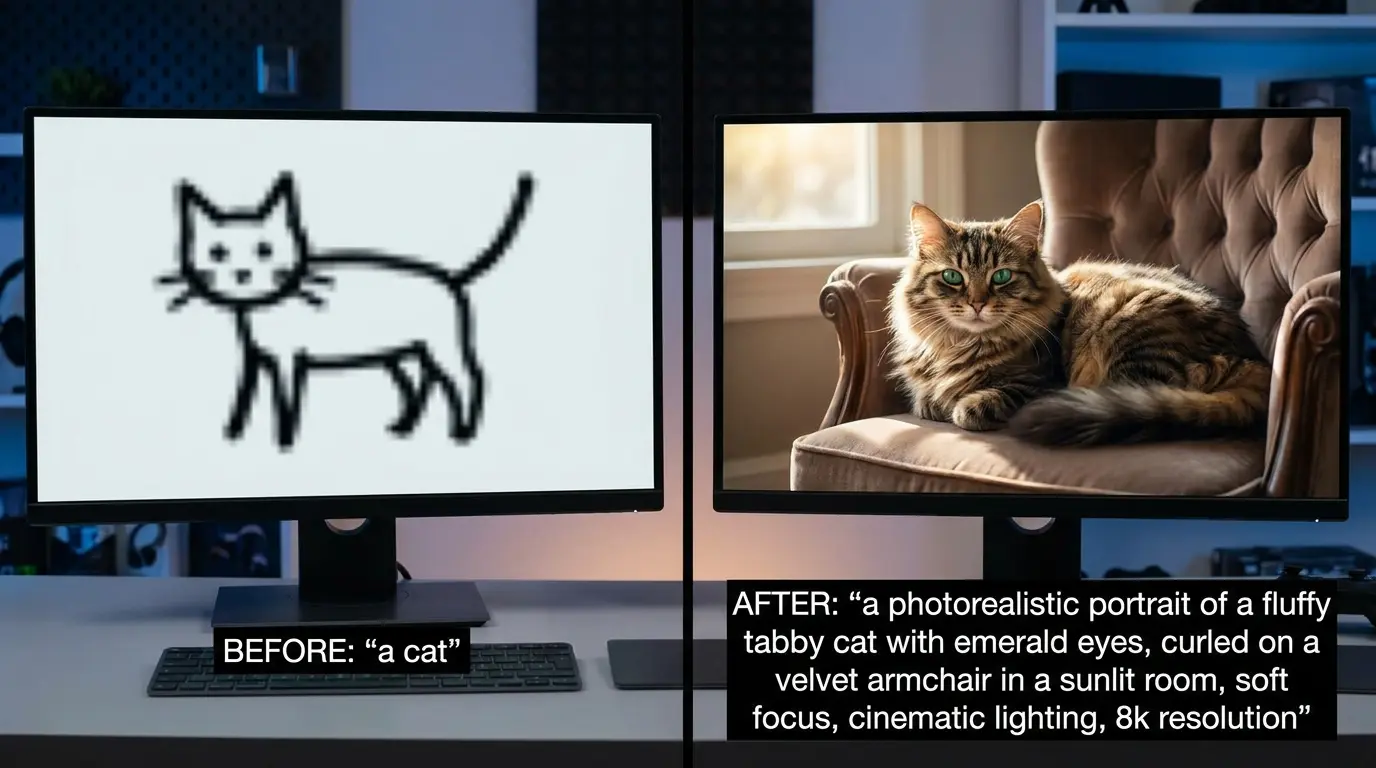
Writing a great prompt is the single most important skill in AI art. Think of your prompt as giving instructions to a very literal artist who can’t read your mind.
| Element | Description | Example |
|---|---|---|
| Subject | The main focus of the image | “a young woman warrior” |
| Style | The artistic style or look | “in the style of Studio Ghibli anime” |
| Setting | The location or background scene | “standing in a misty forest” |
Example of a Weak Prompt
| Weak Prompt |
|---|
| Cat |
Example of a Strong Prompt
| Strong Prompt |
|---|
| A majestic black cat sitting on an ancient stone wall, moonlit night, glowing amber eyes, cinematic lighting, hyperrealistic, 8K resolution |
What Does Seed Number Do in AI Image Generation?
This is one of the most common questions beginners ask, and it’s a great one. The seed number in AI image generation is like a starting point for randomness. Every time you generate an image, the AI starts from a random “noise” pattern. The seed number controls which random noise pattern is used.
Why does this matter?
- If you use the same seed + same prompt, you’ll get the same image every time
- If you change the seed but keep the prompt, you’ll get a different variation
- Seeds let you reproduce your favorite results exactly
So if you generate a great image and want to tweak it slightly (like changing the background), keep the same seed and just modify a word in your prompt. This keeps the core composition intact.
What Does the Guidance Scale Do in AI Art?
The guidance scale (sometimes called the CFG scale) controls how strictly the AI follows your text prompt.
Here’s a simple way to understand it:
Low guidance scale (1–5):
The AI gets creative and may ignore parts of your prompt. Results can be unexpected and artistic, but also random.
Medium guidance scale (6–10):
A balanced approach. The AI follows your prompt but still adds its own interpretation. This is the sweet spot for most users.
High guidance scale (11–20):
The AI follows your prompt very literally. Results are more predictable but can sometimes look overcooked or distorted.
Recommended setting for beginners:
Start between 7 and 9. Adjust from there based on your results.
How to Use Negative Prompts in AI Art
Negative prompts are one of the most powerful and most underused features in AI art generation. A negative prompt tells the AI what you don’t want in your image. Think of it as a “do not include” list.
Common negative prompts that improve quality:
Blurry, Low Quality, Pixelated Remove Poor Image Quality
These negative keywords help the AI create sharper, clearer, and more detailed images instead of blurry or pixelated results.
Extra Fingers, Deformed Hands Fix Anatomy Issues
AI often makes mistakes with hands and body parts. These keywords help generate more realistic anatomy and better proportions.
Watermark, Text, Logo Remove Unwanted Overlays
Adding these words prevents random text, logos, or watermark-like marks from appearing in the final image.
Ugly, Bad Anatomy, Disfigured Improve Overall Appearance
These negative prompts help the AI create cleaner, more attractive, and balanced-looking images.
Example of a Strong Negative Prompt
Prompt: beautiful woman in traditional Pakistani attire, colorful embroidery, golden jewelry, soft lighting
Negative Prompt: blurry, extra limbs, bad anatomy, low quality, watermark, cartoon
A strong negative prompt improves image quality by reducing common AI-generated mistakes. Adding a solid negative prompt can dramatically improve your results without changing a single word of your main prompt.
OpenDream AI Commercial Use Rights
For creators working in regulated markets, it’s also worth understanding how frameworks like the EU AI Act affect AI-generated content and intellectual property rights.
The rules around OpenDream AI commercial use rights depend on a few factors:
Which model did you use?
Some community-uploaded models carry their own licenses. Always check the model’s description page.
Your account type
Free users may have more restricted commercial rights than paid subscribers.
The base model license
OpenDream is built on Stable Diffusion, which uses a Creative ML OpenRAIL-M license. This generally allows commercial use with some conditions.
Best practice:
If you’re using images for commercial projects (selling prints, using in ads, etc.), read the specific model’s license carefully. When in doubt, use the official base models rather than community fine-tunes.
“Once you’re comfortable with image generation, you might also explore how AI companion tools like Dopple AI are pushing creative and conversational AI in a completely different direction.”
OpenDream AI Images Without Watermark
One of the first things beginners notice is the watermark that appears on images generated with the free plan.
Here’s what you need to know about OpenDream AI images without a watermark:
Free Plan Images May Include Watermarks
Many AI image generators add a small watermark to images created on the free plan.
Paid Plan Watermarks Are Usually Removed
Most paid plans remove watermarks and provide cleaner, higher quality images for professional use.
Workaround Cropping the Watermark Area
Some users crop the watermark section from the image, but this method may reduce image quality or affect the composition.
If you need clean, watermark free images regularly, upgrading to a paid plan is the most straightforward solution. For casual personal projects, the watermarked versions work just fine.
Common Mistakes Beginners Make
Learning from mistakes is good. Learning from other people’s mistakes is even better.
Here are the most common errors new users make with OpenDream AI Art:
Using vague prompts
“a nice landscape,” gives you generic results. Be specific.
Ignoring negative prompts
Skipping negative prompts leads to blurry, distorted images.
Setting the guidance scale too high
Values above 15 often create unnatural, oversaturated images.
Not experimenting with seeds
Once you find a composition you like, save the seed number.
Choosing the wrong model
Using a photorealistic model for anime content (or vice versa) gives poor results.
Avoid these five mistakes, and you’ll already be ahead of 80% of beginners.
Expert Tips for Better Results
Want to go from beginner to power user? Apply these tips:
Stack Style References
Combine multiple artistic styles in one prompt. Example: “in the style of Studio Ghibli meets Monet impressionism”
Use Artist Name References
Mentioning well-known artists shapes the visual style. Try adding “by Greg Rutkowski” or “in the style of Alphonse Mucha” to your prompt.
Add Camera and Lens Details
For photorealistic images, add terms like “shot on Canon EOS R5, 85mm lens, f/1.8 bokeh.” This signals the AI to create more realistic outputs.
Iterate, Don’t Overhaul
Change one element at a time when refining your prompt. This way, you know exactly what made the difference.
Use the Community Feed for Inspiration
OpenDream has a community gallery. Browse it regularly to find prompt patterns that produce great results, then adapt them for your own ideas.
Final Thoughts
OpenDream AI Art is a beginner friendly and powerful AI tool that helps you turn simple text prompts into high quality digital artwork such as fantasy scenes, anime characters, realistic portraits, and creative brand visuals. It works directly in your browser and does not require complex setup, making it easy for anyone to start creating instantly.
To get better results, success mainly depends on how clearly you write your prompts. Using detailed descriptions, adding negative prompts to remove unwanted elements, and experimenting with seed numbers and guidance scale can significantly improve output quality. Choosing the right model for your desired style also plays an important role in achieving accurate results.
The free version allows beginners to explore AI image generation, but it comes with certain usage limits and restrictions. For professional or commercial use, it is important to understand model specific licensing and platform terms before using generated images in business projects.
Overall, the best way to master OpenDream AI Art is consistent practice. The more images you create and refine, the better your understanding of prompts and AI behavior becomes, helping you achieve more polished and creative results over time.
FAQS
Is OpenDream an AI art generator that works without Discord?
Yes! Unlike early Midjourney, OpenDream works entirely in your browser. No Discord server needed, no bot commands to learn.
How do I create AI art without installing any software?
Simply go to opendream.ai in any browser. Everything runs in the cloud nothing downloads to your computer.
Can I generate anime characters for free?
Absolutely. OpenDream has many anime focused models like Anything V5. Choose the model, write an anime-style prompt, and you’ll get great results.
How to upscale AI-generated images?
Use free tools like Upscale (desktop), Let’s Enhance (browser-based), or Picwish to upscale your OpenDream images without losing quality.
Does OpenDream require a sign-up?
You can try it without signing up, but creating a free account gives you more daily credits and the ability to save your generations.
you tried OpenDream AI Art yet? Drop a comment below sharing your experience or share this guide with a friend who wants to start creating AI art for free. Every masterpiece starts with a single prompt.