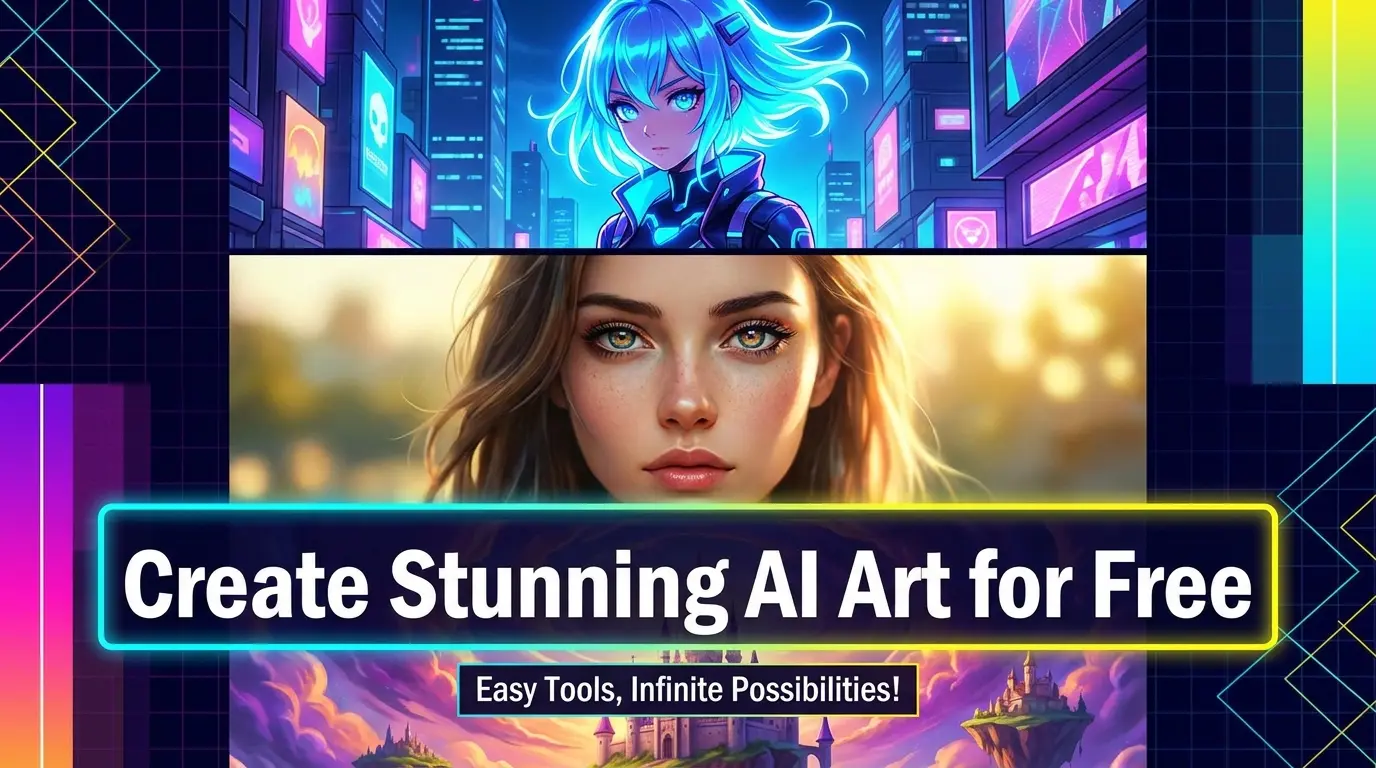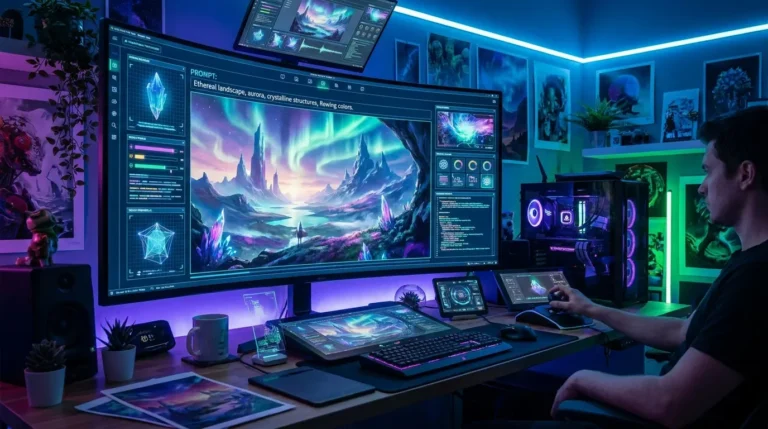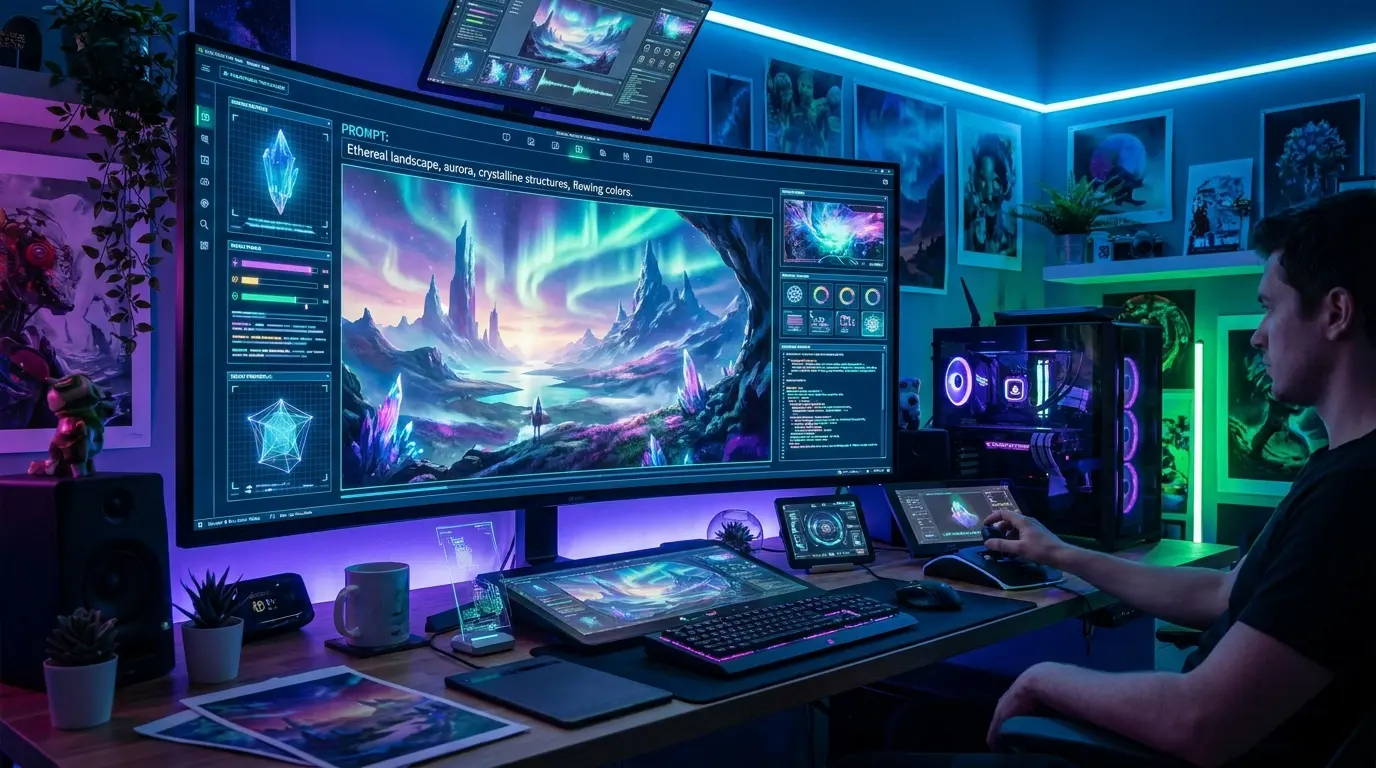
Have you ever wanted to create stunning artwork but felt like you had zero artistic talent? What if a free AI tool could turn your words into jaw-dropping images in seconds, with no drawing skills, no software downloads, and no Discord server required?
That’s exactly what OpenDream AI Art does. And in this guide, you’ll learn everything about it from how it works to how to get the best results without spending a single rupee (or dollar).
Whether you’re a total beginner or someone who has tried other AI art tools before, this guide is for you.
What Is OpenDream AI Art?
OpenDream AI Art is a free, browser-based AI image generator that lets you create beautiful digital artwork just by typing a description. It’s powered by Stable Diffusion, one of the most popular open-source AI image models in the world.
The best part? You don’t need to install any software. You don’t even need to sign up to try it. Just open the website, type what you want to see, and the AI does the rest.
It’s one of the best AI art generators that work without Discord, which makes it perfect for people who got frustrated with Midjourney’s old requirement to use a Discord server.
OpenDream is used by hobbyists, digital artists, game designers, content creators, and even small business owners who need quick visuals for their projects.
The biggest advantage:
- No software installation required
- No technical skills needed
- Works directly in your browser
It’s perfect for:
- Content creators
- Designers
- Students
- Freelancers
- Beginners exploring AI art
How Does OpenDream AI Work?
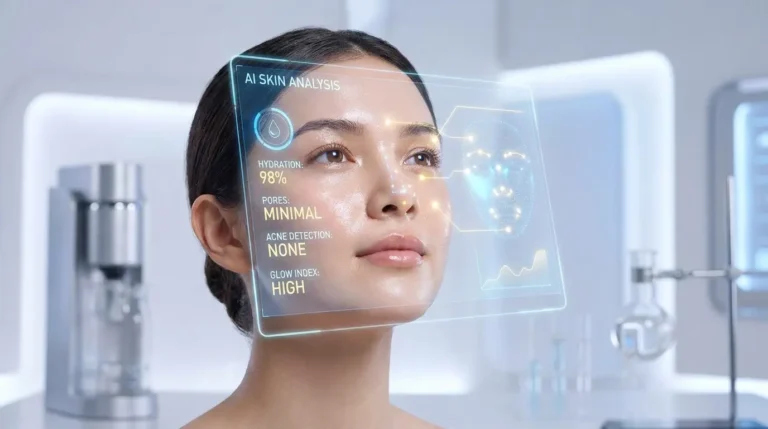
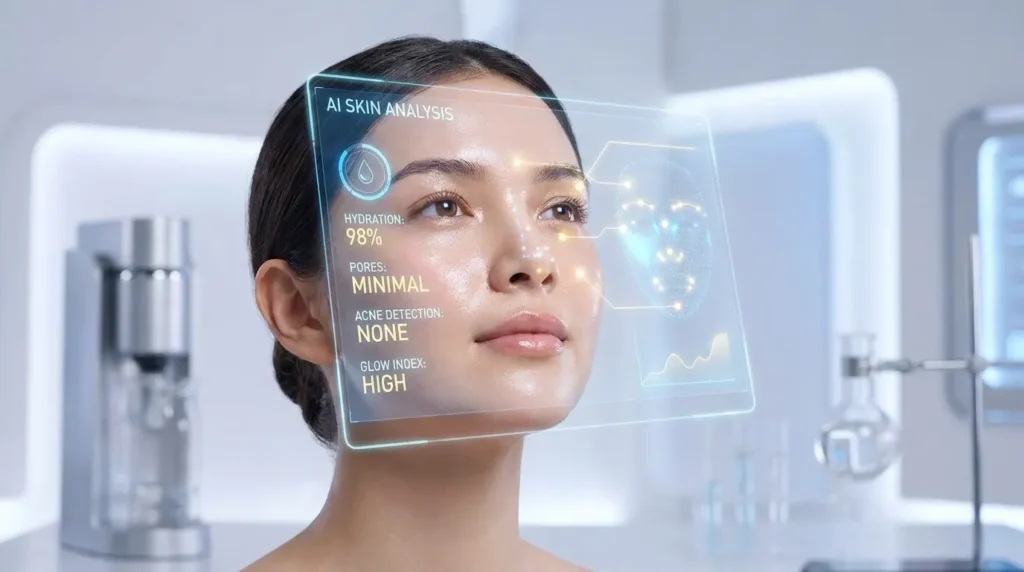
This same underlying technology, AI analyzing and interpreting visual data, is what powers tools like AI skin analysis, where the model reads facial features instead of generating new ones.
Here’s a simplified breakdown of the process:
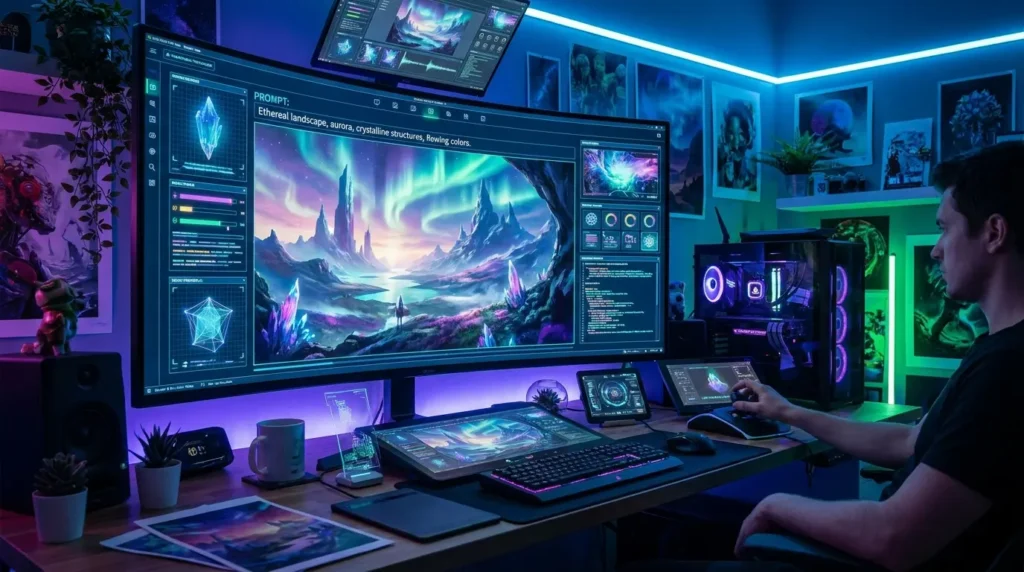
- You enter a text prompt like “a fantasy castle in the clouds at sunset.”
- The AI breaks down your words into patterns it understands
- It then “draws” an image pixel by pixel based on those patterns
- Within seconds, your image appears on screen
OpenDream also uses models fine-tuned for specific styles like anime, realistic photos, and oil paintings. This means you can generate an anime character with AI for free just by choosing the right model and writing the right prompt.
The technology behind it is based on latent diffusion models, which work by starting with random noise and gradually shaping it into a coherent image guided by your text.
OpenDream AI Tutorial for Beginners (Step-by-Step)
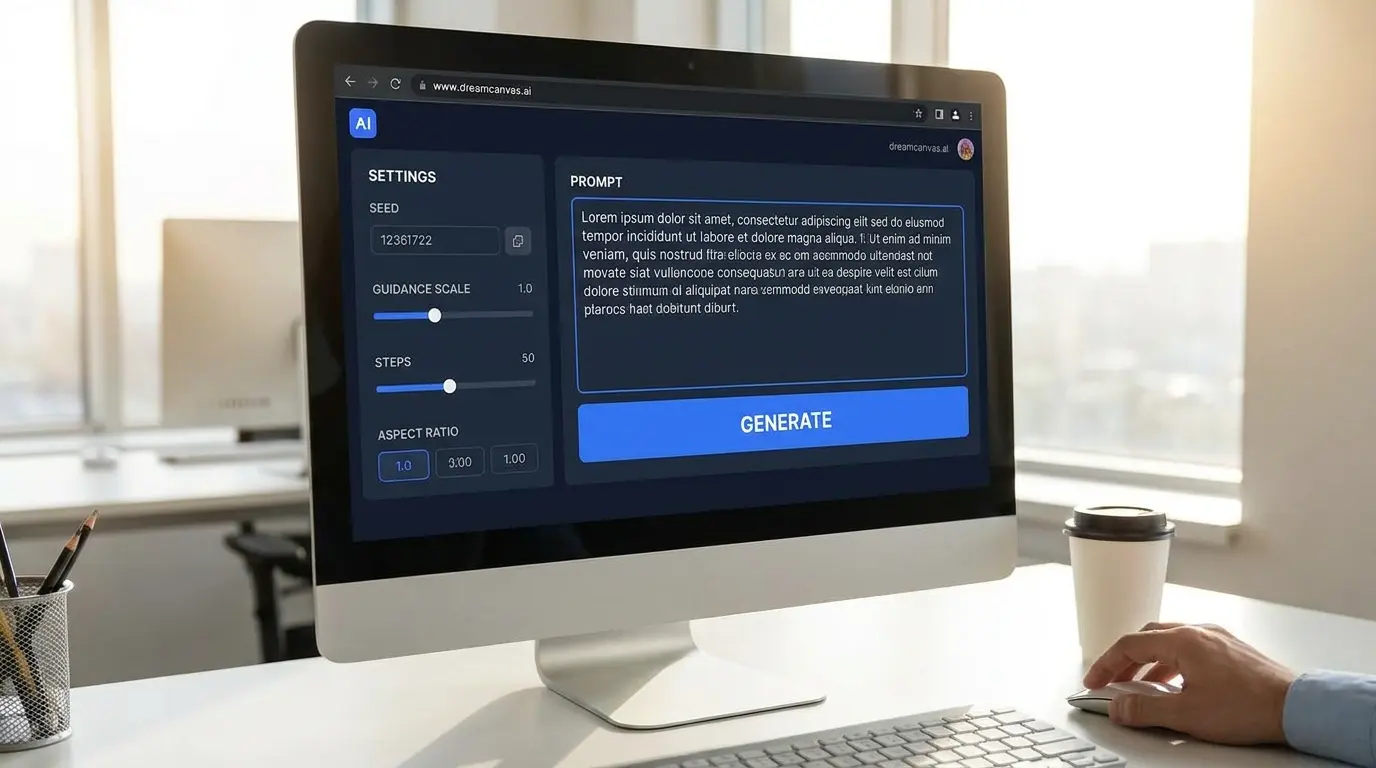
Ready to create your first AI image? Follow these simple steps:
Step 1: Go to the OpenDream Website. Visit opendream.ai in your browser. No app download needed. This is one of the best AI image generators that requires no sign-up to try.
Step 2: Choose a Model. OpenDream offers several models. For beginners, the default model works great. If you want anime-style art, look for models labeled “Anything V5” or similar anime-focused options.
Step 3: Write Your Prompt. In the text box, describe the image you want. Be specific! Instead of “a dog,” try “a golden retriever puppy sitting in a sunflower field, golden hour lighting, photorealistic.”
Step 4: Set Your Parameters
- Image size: Choose based on your use case (more on this below)
- Seed: Leave it random for variety, or set a specific number to reproduce results
- Guidance scale: Controls how closely the AI follows your prompt
Step 5: Click the generate button and wait a few seconds. Your image will appear below.
Step 6: Download or Regenerate. If you like the result, download it. If not, tweak your prompt and try again.
That’s it, you’ve just created your first piece of OpenDream AI Art!
“If you enjoy hands-on AI tool setup guides, the step-by-step process for setting up DeepSeek on Janitor AI follows a very similar workflow to what you’ll do here.”
OpenDream AI Free Plan Limits Explained
OpenDream offers a free tier, which is great for beginners. But it’s important to understand what you get and what you don’t.
What the Free Plan Includes:
- A limited number of image generations per day (usually around 20–30)
- Access to most community models
- Standard generation speed
What the Free Plan Limits:
- Fewer daily credits than paid plans
- Some premium models may be locked
- Lower priority in the generation queue during busy times
If you’re just experimenting or creating personal art, the free plan is more than enough to get started. For professional use, consider upgrading.
OpenDream AI Image Size Guide
Choosing the right size is important.
| Use Case | Recommended Size |
|---|---|
| Social media posts | 512 x 512 or 768 x 768 |
| YouTube thumbnails | 1280 x 720 (landscape) |
| Phone wallpapers | 512 x 912 (portrait) |
| Desktop wallpapers | 912 x 512 (landscape) |
| Print/posters | 768 x 768 or higher |
Pro Tip:
Larger sizes use more credits. Start with 512 x 512 when testing your prompt, then upscale the final version. Speaking of which, you can upscale AI-generated art for free online using tools like Upscale or Let’s Enhance.
How to Write Prompts for OpenDream AI
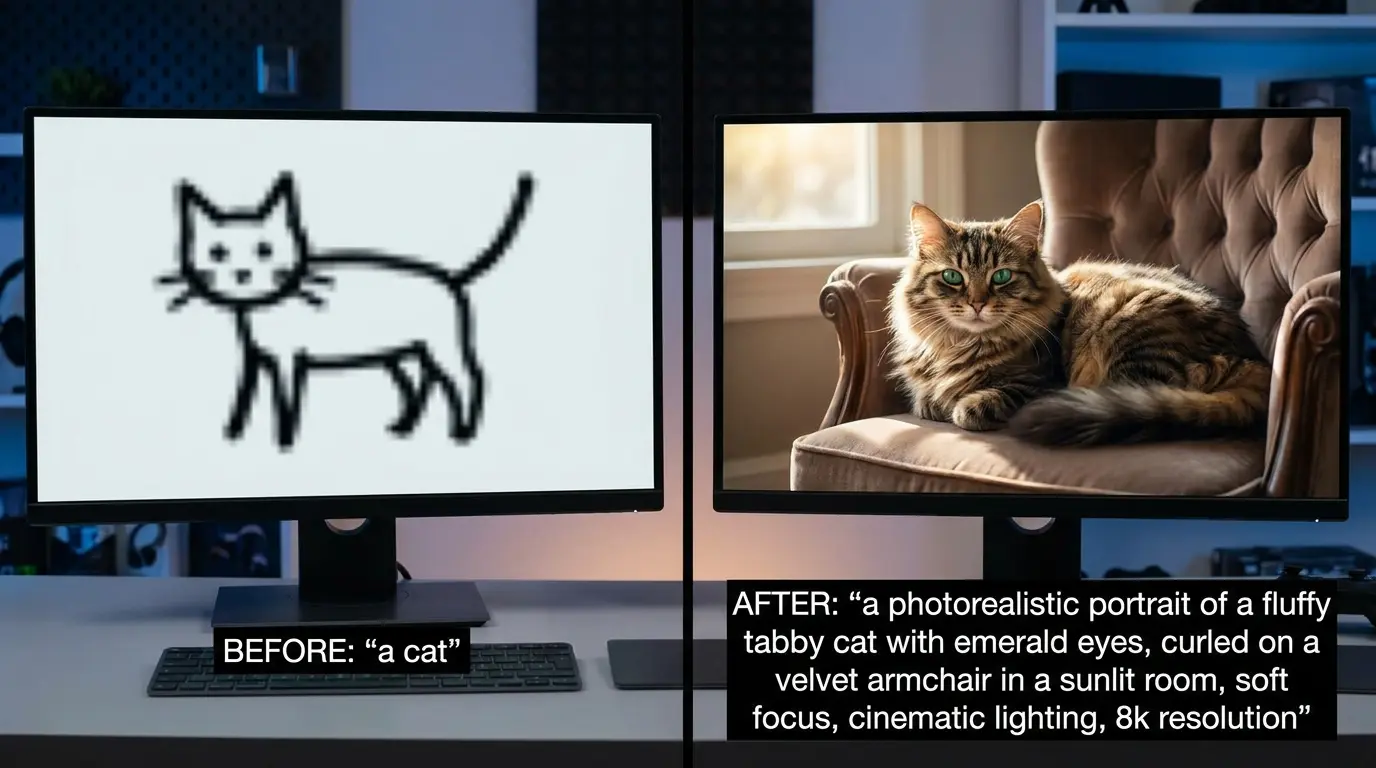
Writing a great prompt is the single most important skill in AI art. Think of your prompt as giving instructions to a very literal artist who can’t read your mind.
A good prompt includes:
- Subject: What is the main focus? (e.g., “a young woman warrior”)
- Style: What art style? (e.g., “in the style of Studio Ghibli anime”)
- Setting: Where is it? (e.g., “standing in a misty forest”)
- Lighting: What kind of light? (e.g., “soft golden hour lighting”)
- Quality boosters: Add words like “highly detailed, 8K, masterpiece, sharp focus.”
Example of a weak prompt: cat
Example of a strong prompt: a majestic black cat sitting on an ancient stone wall, moonlit night, glowing amber eyes, cinematic lighting, hyperrealistic, 8K resolution
This skill, crafting precise instructions for an AI, is also central to getting useful results from AI homework helpers and math solvers, which rely on the same principle of clear input.
What Does Seed Number Do in AI Image Generation?
This is one of the most common questions beginners ask, and it’s a great one.
The seed number in AI image generation is like a starting point for randomness. Every time you generate an image, the AI starts from a random “noise” pattern. The seed number controls which random noise pattern is used.
Why does this matter?
- If you use the same seed + same prompt, you’ll get the same image every time
- If you change the seed but keep the prompt, you’ll get a different variation
- Seeds let you reproduce your favorite results exactly
So if you generate a great image and want to tweak it slightly (like changing the background), keep the same seed and just modify a word in your prompt. This keeps the core composition intact.
What Does the Guidance Scale Do in AI Art?
The guidance scale (sometimes called the CFG scale) controls how strictly the AI follows your text prompt.
Here’s a simple way to understand it:
- Low guidance scale (1–5): The AI gets creative and may ignore parts of your prompt. Results can be unexpected and artistic, but also random.
- Medium guidance scale (6–10): A balanced approach. The AI follows your prompt but still adds its own interpretation. This is the sweet spot for most users.
- High guidance scale (11–20): The AI follows your prompt very literally. Results are more predictable but can sometimes look overcooked or distorted.
Recommended setting for beginners: Start between 7 and 9. Adjust from there based on your results.
How to Use Negative Prompts in AI Art
Negative prompts are one of the most powerful and most underused features in AI art generation.
A negative prompt tells the AI what you don’t want in your image. Think of it as a “do not include” list.
Common negative prompts that improve quality:
blurry, low quality, pixelatedremoves poor image qualityextra fingers, deformed handsfixes common anatomy issueswatermark, text, logoremoves unwanted text overlaysugly, bad anatomy, disfiguredimproves overall appearance
Example:
- Prompt: beautiful woman in traditional Pakistani attire, colorful embroidery, golden jewelry, soft lighting
- Negative prompt: blurry, extra limbs, bad anatomy, low quality, watermark, cartoon
Adding a solid negative prompt can dramatically improve your results without changing a single word of your main prompt.
OpenDream AI Commercial Use Rights
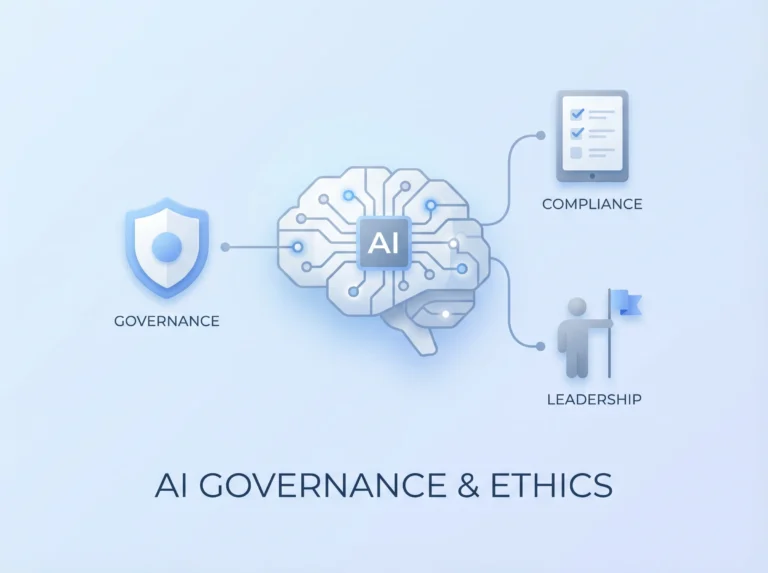
For creators working in regulated markets, it’s also worth understanding how frameworks like the EU AI Act affect AI-generated content and intellectual property rights.
The rules around OpenDream AI commercial use rights depend on a few factors:
- Which model did you use? Some community-uploaded models carry their own licenses. Always check the model’s description page.
- Your account type: Free users may have more restricted commercial rights than paid subscribers.
- The base model license: OpenDream is built on Stable Diffusion, which uses a Creative ML OpenRAIL-M license. This generally allows commercial use with some conditions.
Best practice: If you’re using images for commercial projects (selling prints, using in ads, etc.), read the specific model’s license carefully. When in doubt, use the official base models rather than community fine-tunes.
“Once you’re comfortable with image generation, you might also explore how AI companion tools like Dopple AI are pushing creative and conversational AI in a completely different direction.”
OpenDream AI Images Without Watermark
One of the first things beginners notice is the watermark that appears on images generated with the free plan.
Here’s what you need to know about OpenDream AI images without a watermark:
- Free plan: Images typically include a small watermark
- Paid plan: Watermarks are removed on most paid tiers
- Workaround: Some users crop the watermark area if the composition allows it — though this isn’t ideal for professional use
If you need clean, watermark-free images regularly, upgrading to a paid plan is the most straightforward solution. For casual personal projects, the watermarked versions work just fine.
Common Mistakes Beginners Make
Learning from mistakes is good. Learning from other people’s mistakes is even better.
Here are the most common errors new users make with OpenDream AI Art:
- Using vague prompts: “a nice landscape,” gives you generic results. Be specific.
- Ignoring negative prompts: Skipping negative prompts leads to blurry, distorted images.
- Setting the guidance scale too high: Values above 15 often create unnatural, oversaturated images.
- Not experimenting with seeds: Once you find a composition you like, save the seed number.
- Choosing the wrong model: Using a photorealistic model for anime content (or vice versa) gives poor results.
Avoid these five mistakes, and you’ll already be ahead of 80% of beginners.
Expert Tips for Better Results
Want to go from beginner to power user? Apply these tips:
Tip 1: Stack Style References. Combine multiple artistic styles in one prompt. Example: “in the style of Studio Ghibli meets Monet impressionism”
Tip 2: Use Artist Name References. Mentioning well-known artists shapes the visual style. Try adding “by Greg Rutkowski” or “in the style of Alphonse Mucha” to your prompt.
Tip 3: Add Camera and Lens Details. For photorealistic images, add terms like “shot on Canon EOS R5, 85mm lens, f/1.8 bokeh.” This signals the AI to create more realistic outputs.
Tip 4: Iterate, Don’t Overhaul. Change one element at a time when refining your prompt. This way, you know exactly what made the difference.
Tip 5: Use the Community Feed for Inspiration. OpenDream has a community gallery. Browse it regularly to find prompt patterns that produce great results, then adapt them for your own ideas.
FAQs About OpenDream AI Art
Is OpenDream an AI art generator that works without Discord?
Yes! Unlike early Midjourney, OpenDream works entirely in your browser. No Discord server needed, no bot commands to learn.
How do I create AI art without installing any software?
Simply go to opendream.ai in any browser. Everything runs in the cloud — nothing downloads to your computer.
Can I generate anime characters for free?
Absolutely. OpenDream has many anime-focused models like Anything V5. Choose the model, write an anime-style prompt, and you’ll get great results.
How to upscale AI-generated images?
Use free tools like Upscale (desktop), Let’s Enhance (browser-based), or Picwish to upscale your OpenDream images without losing quality.
Does OpenDream require a sign-up?
You can try it without signing up, but creating a free account gives you more daily credits and the ability to save your generations.
Final Thoughts
OpenDream AI Art is one of the most accessible, powerful, and beginner-friendly AI image tools available today. Whether you want to create fantasy illustrations, anime characters, realistic portraits, or unique digital art for your brand, this tool has you covered.
The key takeaways from this guide:
- Start with clear, detailed prompts
- Use negative prompts to remove unwanted elements
- Experiment with seed numbers and guidance scale
- Choose the right model for your desired style
- Understand the free plan limits and commercial use rights before going professional
The best way to improve is simply to start creating. Make 10 images today. Notice what works, what doesn’t, and keep refining.
Now it’s your turn! Have you tried OpenDream AI Art yet? Drop a comment below sharing your experience — or share this guide with a friend who wants to start creating AI art for free. Every masterpiece starts with a single prompt.